Entitlement checking in the My ActianSoftware delivery portal
The My ActianSoftware portal (MHS) is available for the distribution of ActianSoftware products. In MHS, you can find and download the latest ActianSoftware product releases and supported older releases. This topic provides information on how you can check your entitlements in the MHS delivery portal.
Prerequisites
Make sure you have the following elements before configuring the Actian Digital Experience (DX) Cloud Native V9.5 entitlements to be deployed on supported Kubernetes platforms using the MHS delivery portal for entitlement checking:
- An MHS account and access to the MHS portal.
- A valid Actian DX Cloud Native 9.5 (Tier 1 – 7) offering part purchased and issued by the Actian Software licensing team.
- Your DX Cloud Native 9.5 (Tier 1 – 7) entitlements are mapped to your MHS portal instances.
- A plan to deploy or update to Actian DX 9.5 Container Update CF226 or to a later release, if you are currently using a prior version.
- An instance deployment. To create an instance deployment, refer to the steps in Creating an MHS deployment instance in the MHS portal.
In addition to these elements, review the architecture that presents the License Manager component of the Actian DX v9.5 Container Update software.
Architecture
The License Manager component communicates with the MHS entitlement service. This is to validate license entitlement at set periods for Actian DX Cloud Native V9.5 Tier 1 – 7 software after configuring the DX Cloud Native 9.5 deployment through the Helm chart. The License Manager component also transmits user session consumption from your production DX Cloud Native 9.5 deployments to the MHS usage reporting services.
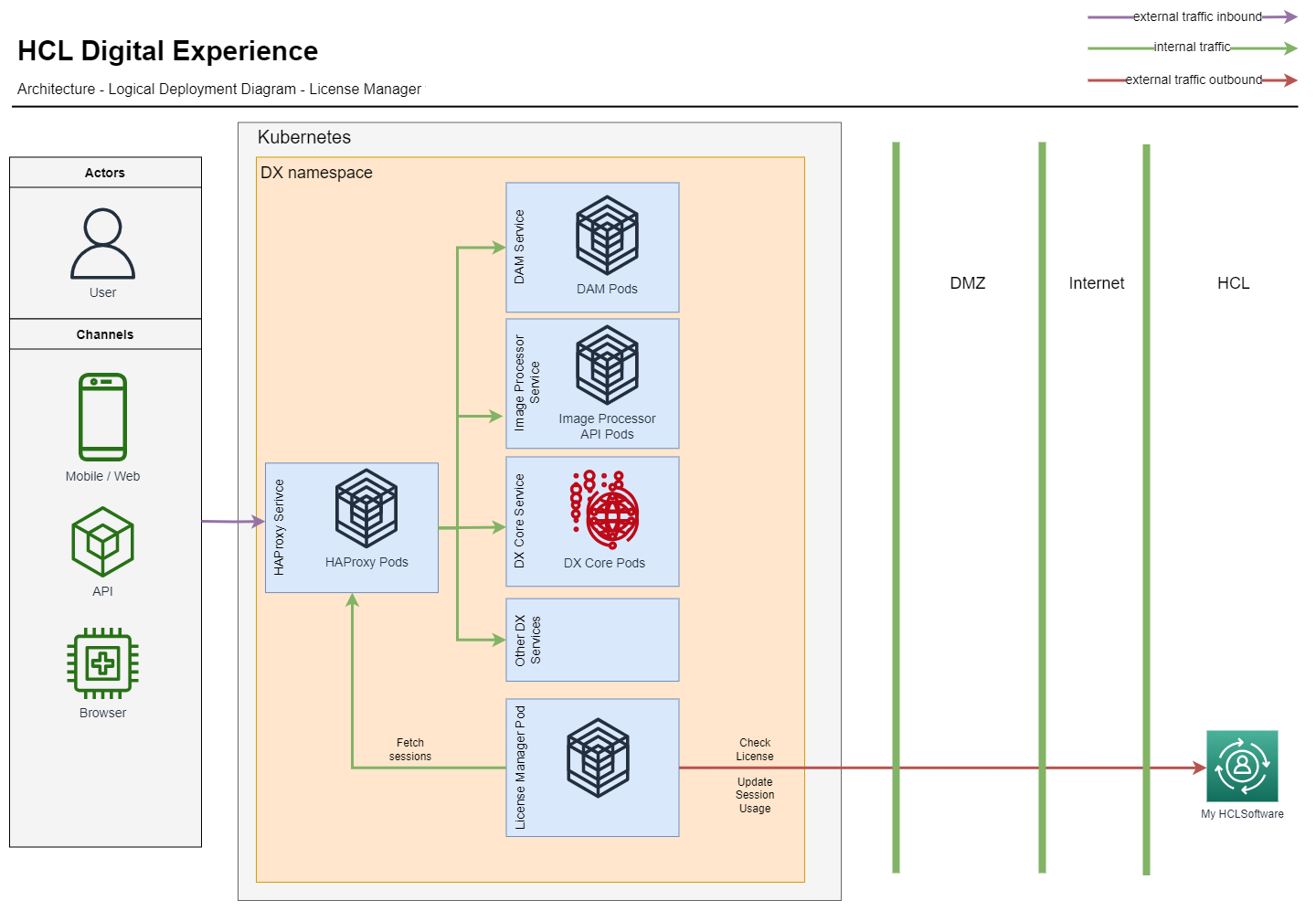
Follow the configuration steps in Configuring the DX Cloud Native 9.5 entitlement before you deploy a new or update an existing DX 9.5 Container deployment. By completing these steps, you configure the DX Cloud Native 9.5 Tier 1 – 7 deployment using a Helm chart and enable the License Manager entitlement-checking functions.
Configuring the DX Cloud Native 9.5 entitlement
DX Cloud Native 9.5 uses the License Manager to connect with MHS to check license validity and track user sessions. This helps make sure your deployment stays within the allowed usage and provides insights for license management.
-
Entitlement validation: The License Manager periodically validates the active DX entitlement by communicating with MHS. Entitlements are typically valid for 12 months, with a 28-day grace period before expiration. During this grace period, reminder messages are logged within the container to prompt timely renewal.
-
User session reporting: The License Manager regularly transmits user session data to MHS. This reporting allows both customers and Actian to monitor license consumption and ensure usage remains within the bounds of the assigned entitlement tier. The reports also help determine whether a shift to a different usage tier may be necessary based on actual session activity.
Creating an MHS deployment instance
An MHS deployment instance is a registered environment (such as development, test, or production) associated with a customer’s account in the MHS portal. It serves as the target for license metering and entitlement tracking, allowing Actian software (for example, Actian DX) to report usage data such as user sessions. Each deployment instance helps monitor consumption against licensed entitlements. In connected environments, the DX License Manager reports directly to the assigned instance. In disconnected setups, usage data is exported and manually uploaded to the appropriate instance in the portal.
Refer to the following steps to create an MHS deployment instance:
-
Log in to MHS portal.
-
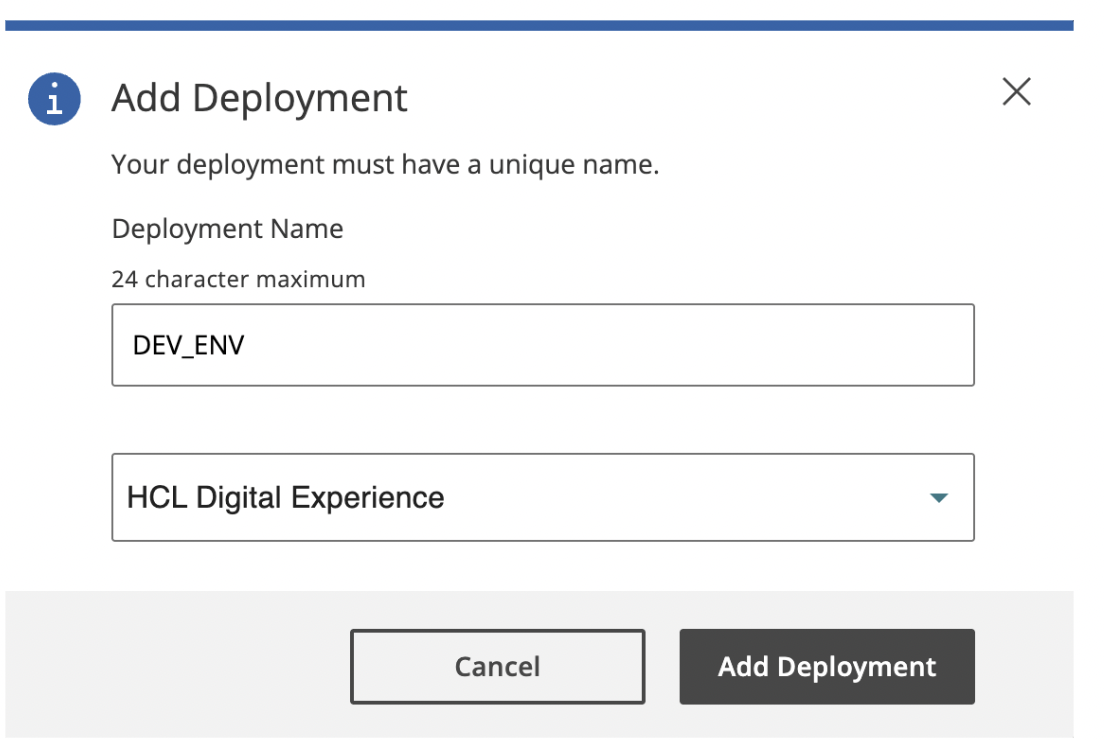
Go to Deployments tab and click Add Deployment.
-
In the Add Deployments window, enter the Deployment Name and select the type of the deployment.
-
Click Add Deployment.
Obtaining the deployment key
After creating a deployment, refer to the following steps to get the deployment key:
-
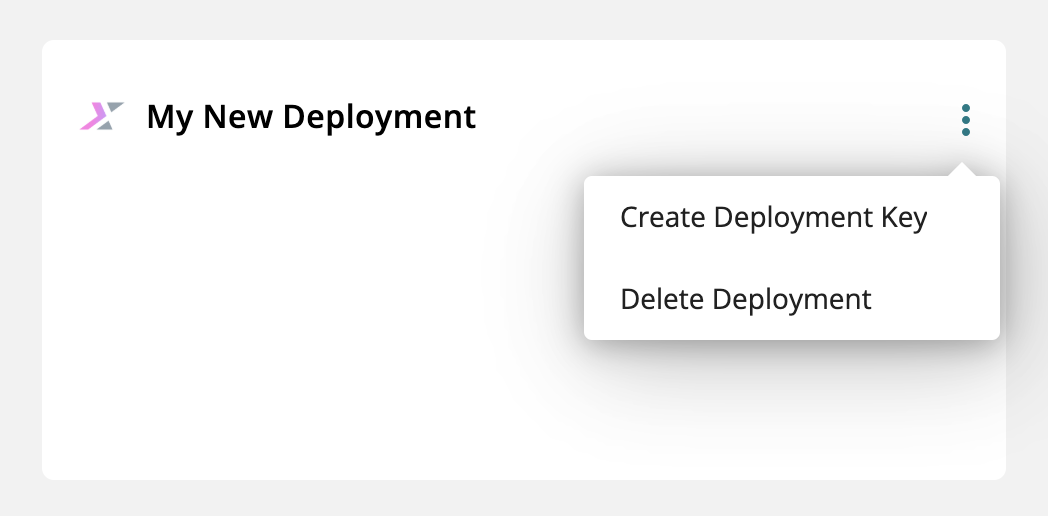
Go to the Deployments tab and locate your newly created deployment.
-
Click the three-dot icon on your deployment then select Create Deployment Key to create a deployment key.
-
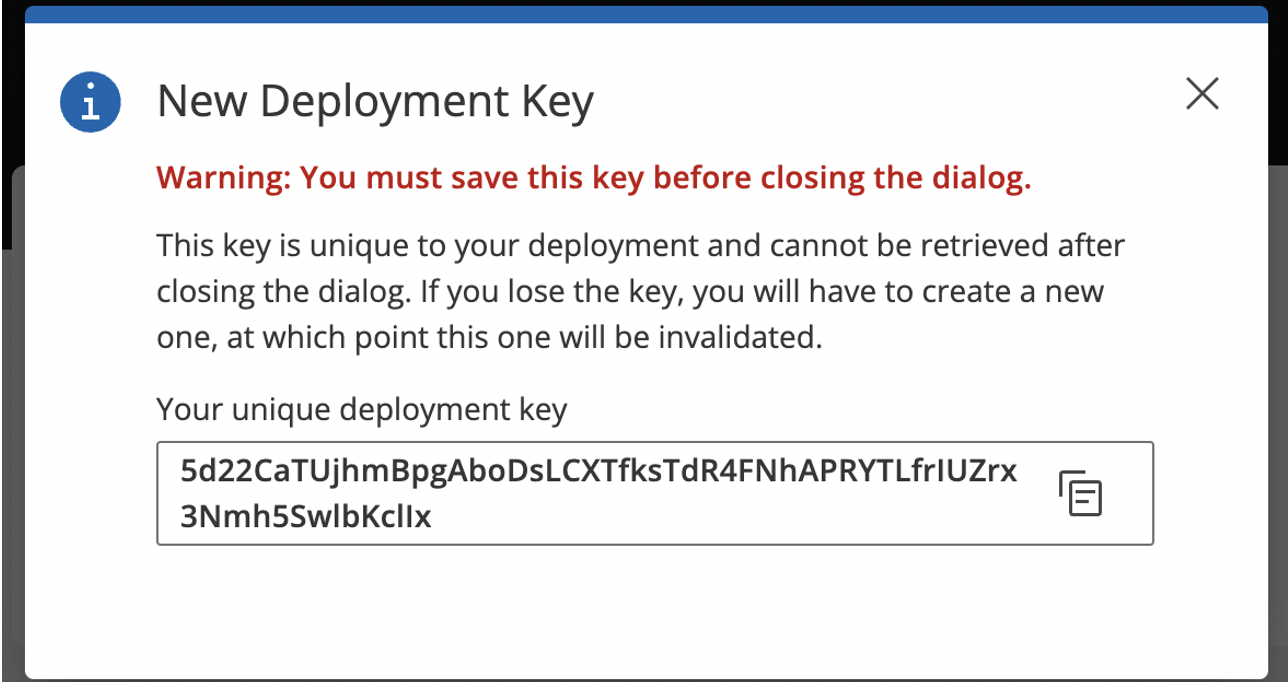
Copy and save the unique deployment key. This will serve as an initial refresh token.
Tip
If you lose your deployment key, you can generate a new one. On the Deployments tab, open your deployment and click the three-dot icon. Then, select Replace Deployment Key to generate a new key.
Configuring License Server
To validate the entitlement details for your software, configure the following properties in the Helm chart:
# License Manager Configuration
  licenseManager:
    # Configures if this environment is a production environment.
    # For non production environments sessions are not counted but the license
    # is still validated.
    productionEnvironment: true
    # MHS License Server URI
    licenseServerUri: "https://api.actian.com"
    # Custom Deployment key secret for MHS deployment instance
    customMhsDeploymentKeySecret: ""
    # Deployment key for MHS deployment instance
    mhsDeploymentKey: ""
productionEnvironment: Set totrueto send usage reports to MHS. For other environments (for example, test or UAT), set tofalse.licenseServerUri: Set to the MHS License Server URI (https://api.actian.com).customMhsDeploymentKeySecret: The name of a secret that has been created and contains the deployment key in a data element calleddeploymentKey. Use a secret for production environments or in any situation where you prefer not to store the deployment key directly invalues.yaml.mhsDeploymentKey: A unique identifier for a specific deployment of DX, against which the usage information for that environment is reported. You can generate a deployment and its associated deployment key for each environment in which you enable License Manager within the My ActianSoftware portal. Put the deployment key in this value element for non-production environments or in situations where storing the key directly invalues.yamlis acceptable.
To create a custom secret, run the following command:
# Sample command for creating a custom secret
kubectl create secret generic <secret-name> --from-literal=deploymentKey=<deploymentKey> --namespace=<namespace>
See the following secret produced by the command:
apiVersion: v1
data:
  deploymentKey: <deploymentKey> # base64 encoded version of <deploymentKey> from the command
kind: Secret
metadata:
  name: <secret-name>
  namespace: <namespace>
type: Opaque
Validating the DX Cloud Native 9.5 deployment entitlement
To validate your entitlement, you must check the logs generated by the License Manager component. The following sample command uses kubectl to fetch the logs from a specific pod within a Kubernetes namespace.
 #Example to get logs:
 kubectl logs pod/dx-deployment-license-manager-0 --namespace=<namespace>
Expected logs
This section shows what a successful entitlement check should look like. The logs should indicate a successful connection to the entitlement server, as illustrated in the following example:
INFO: The connection to the entitlement server is successful. You have a valid Actian Digital Experience Cloud Native 9.5 entitlement. Actian DX Cloud Native 9.5 server starts.
INFO: Starting session count of the license manager
INFO: License validity: true